
Hướng dẫn audio từ text-to-speech demo của google
14/07/2023 • 1 phút đọc
Go to https://cloud.google.com/text-to-speech or https://www.gstatic.com/cloud-site-ux/text_to_speech/text_to_speech.min.htmlOpen the Developer Tools (by F12)Go to the "Network" tab.Enter the text you want to get audio of.Click the "SPEAK IT" b...
Go to https://cloud.google.com/text-to-speech or https://www.gstatic.com/cloud-site-ux/text_to_speech/text_to_speech.min.htmlOpen the Developer Tools (by F12)Go to the "Network" tab.Enter the text you want to get audio of.Click the "SPEAK IT" b...
- Go to https://cloud.google.com/text-to-speech or https://www.gstatic.com/cloud-site-ux/text_to_speech/text_to_speech.min.html
- Open the Developer Tools (by F12)
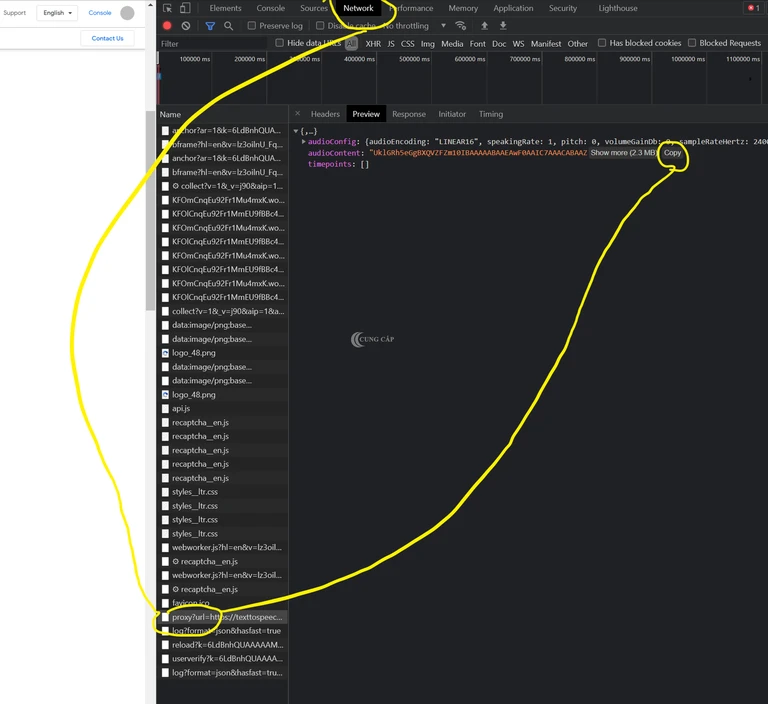
- Go to the "Network" tab.
- Enter the text you want to get audio of.
- Click the "SPEAK IT" button.
- Click the “I’m not a robot” checkbox
- Watch the "Network" tab populate with a couple of entries.
- Right-click the entry that starts with proxy?url=https://texttospeech
- In the preview to right, click "copy" in the line for “audiocontent”
- Save this as a text file (base64.txt). Remove the quotes (") from beginning and end This contains the base64 encoded audio
- In Ubuntu, decode base64 to wav file with the following command:
- cat base64.txt | base64 --decode > audio.mp3
Liên hệ Media Page
Trao đổi trực tiếp với Media Page — không qua trung gian.